

Importing Accounts
This guide shows how to import an existing WAX account into Anchor Wallet Desktop using the WAX setup flow shown in the screenshots below.
Before You Start
- Download and install Anchor only from anchorwallet.io, greymass.com/anchor, or the official GitHub repository
- Have your WAX private key ready if you plan to use the direct import flow
- Keep your Anchor password stored safely offline, because Anchor cannot recover it for you
Download Anchor only from official sources
The only official Anchor download locations are anchorwallet.io, greymass.com/anchor, and the Greymass GitHub repository. anchorwallet.org is fake. Do not download Anchor from that site or from any other unofficial page, ad, or search result.
TIP
If you already have an Anchor backup file, use Import Anchor Backup File on the first screen instead of the account import flow below.
Import an Existing WAX Account with a Private Key
- Open Anchor and select Setup an Account.
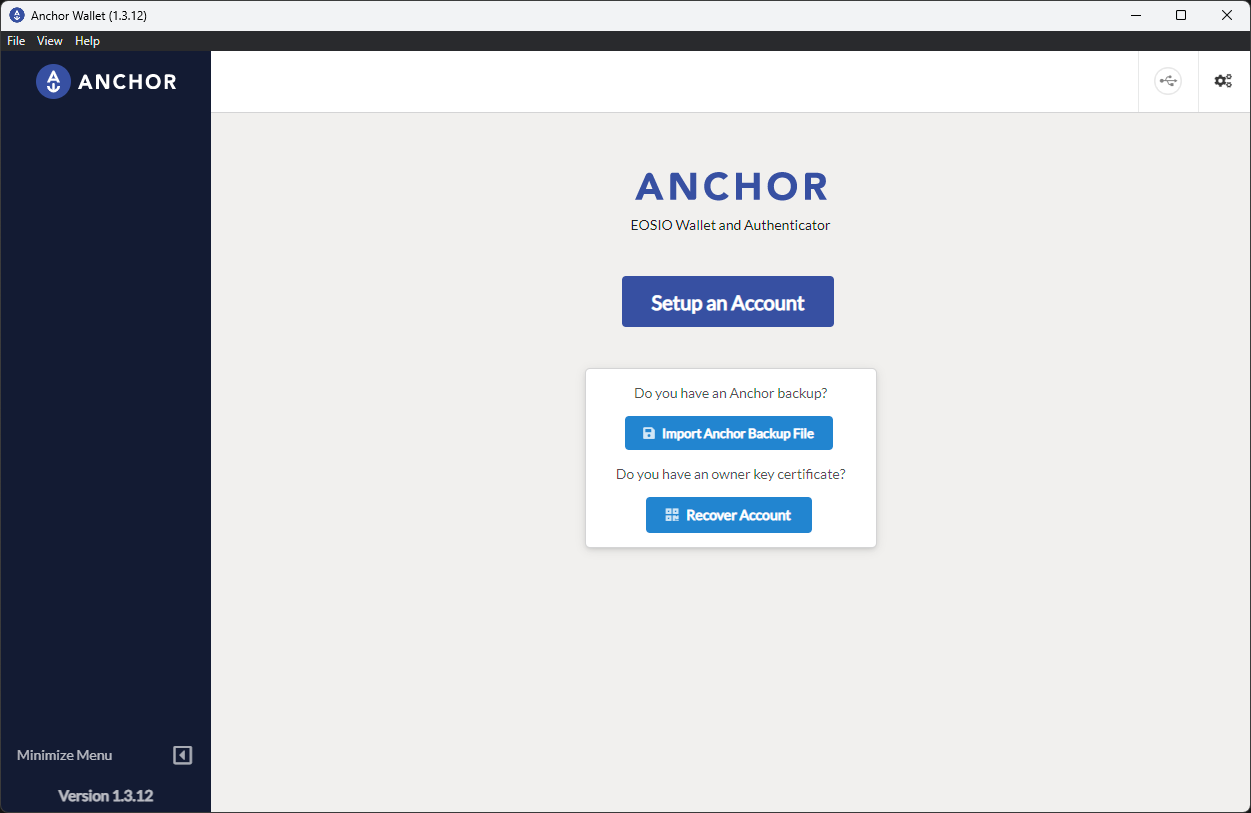
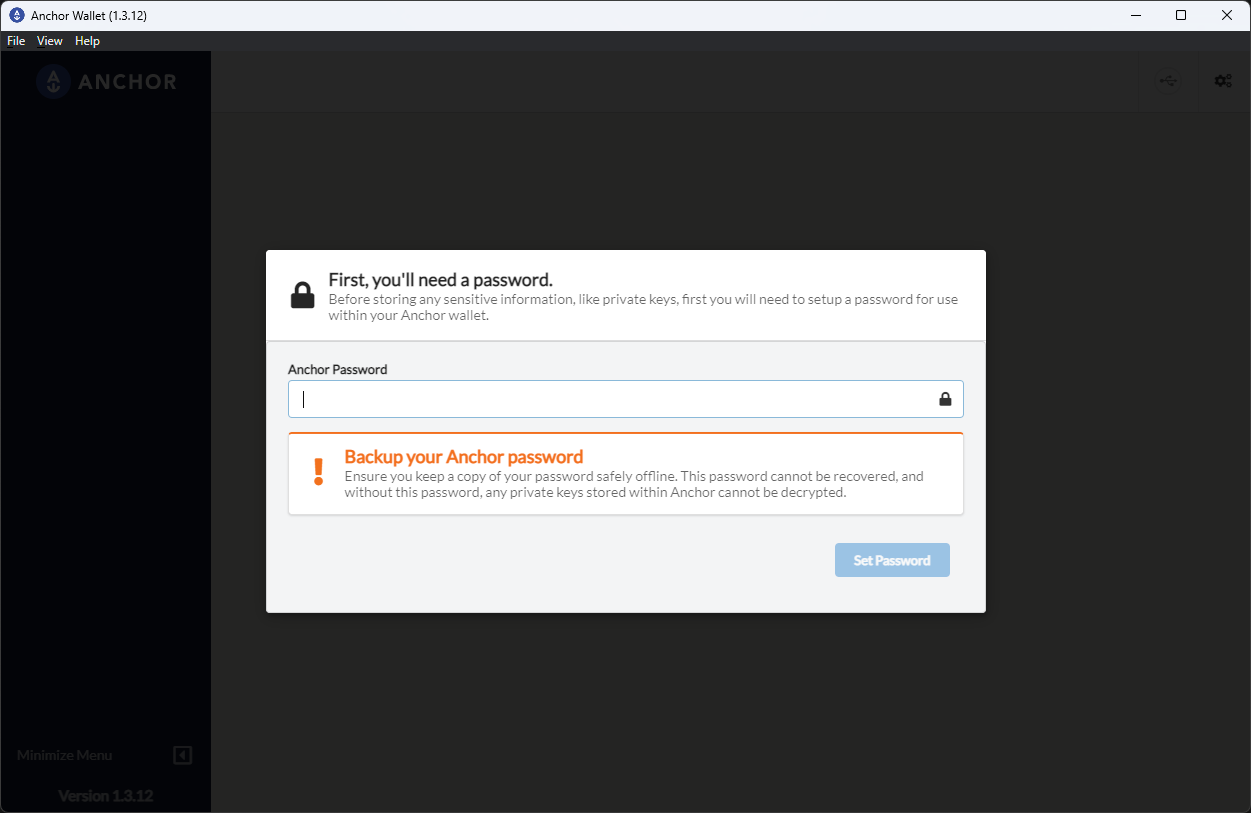
- Create an Anchor password. This password protects the wallet data stored on your device.
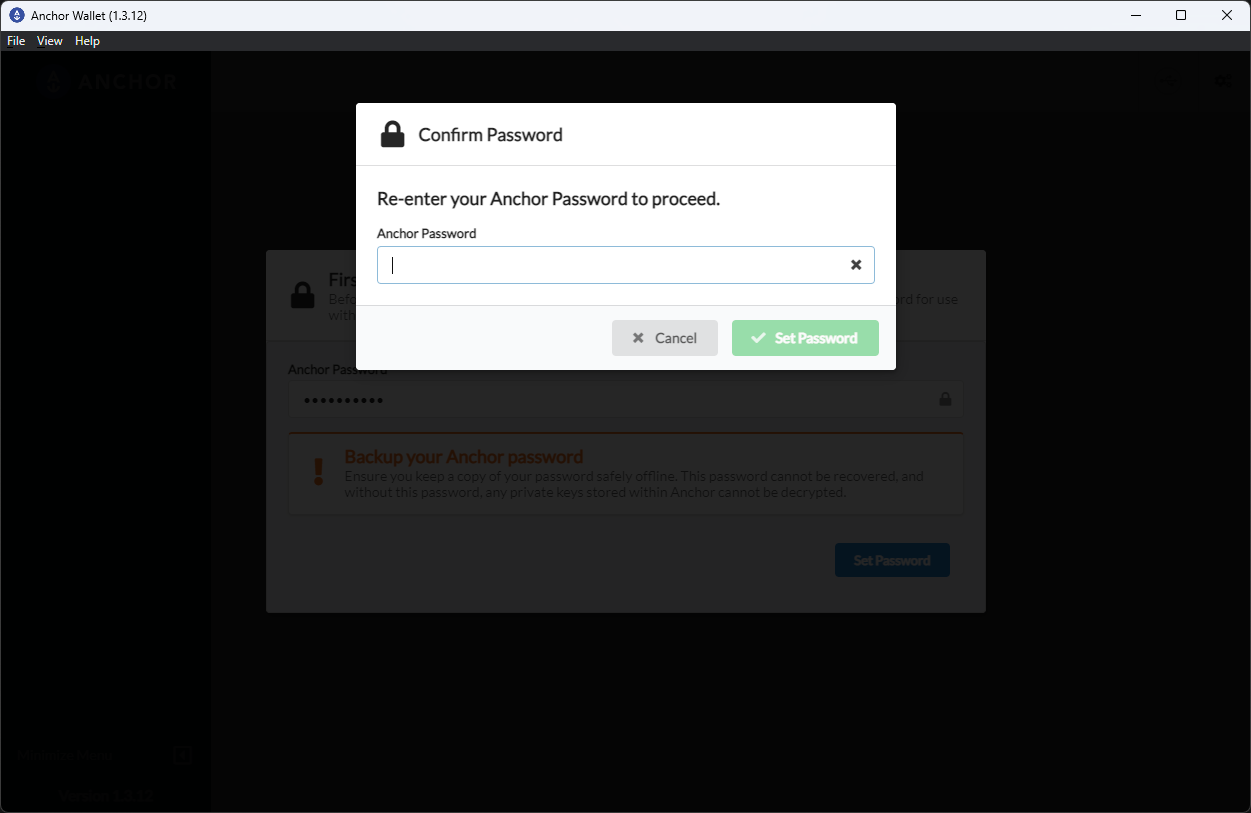
- Re-enter the same password and select Set Password.
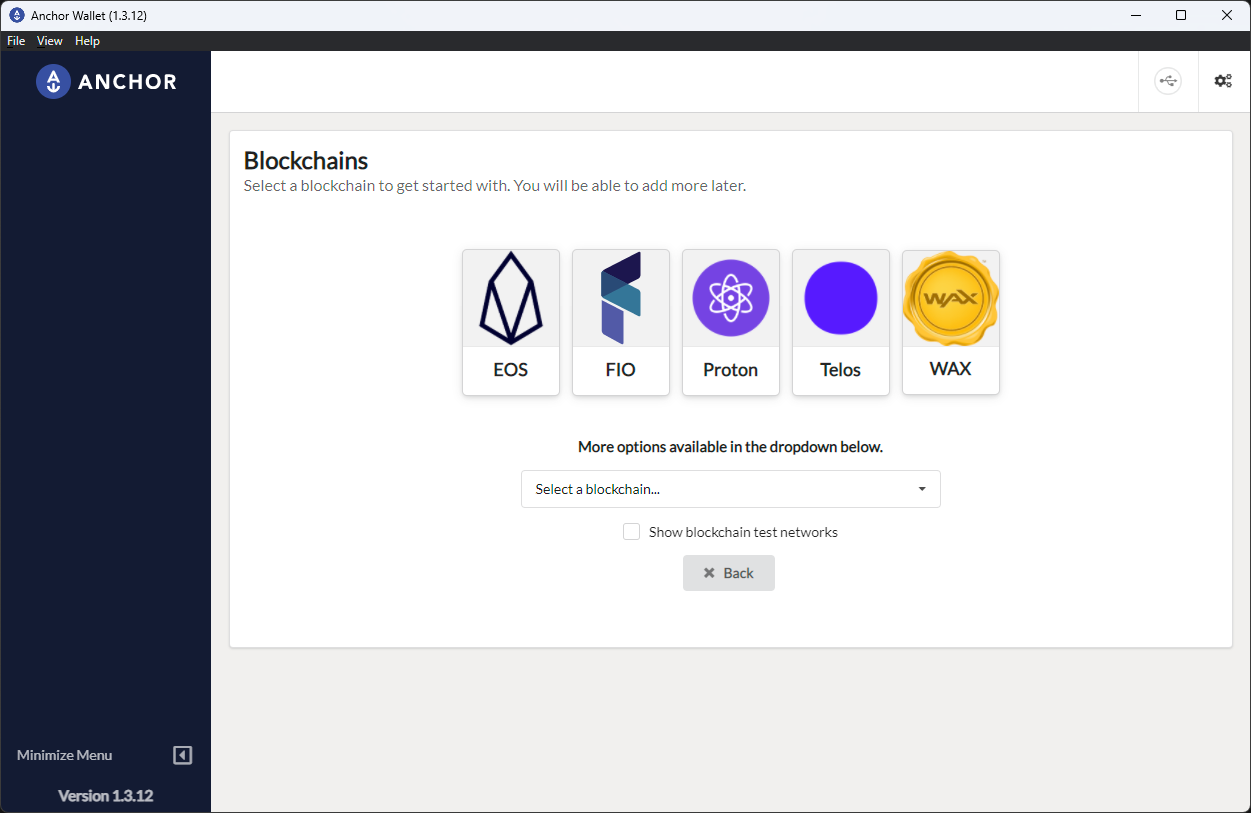
- When Anchor asks which blockchain you want to use, select WAX.
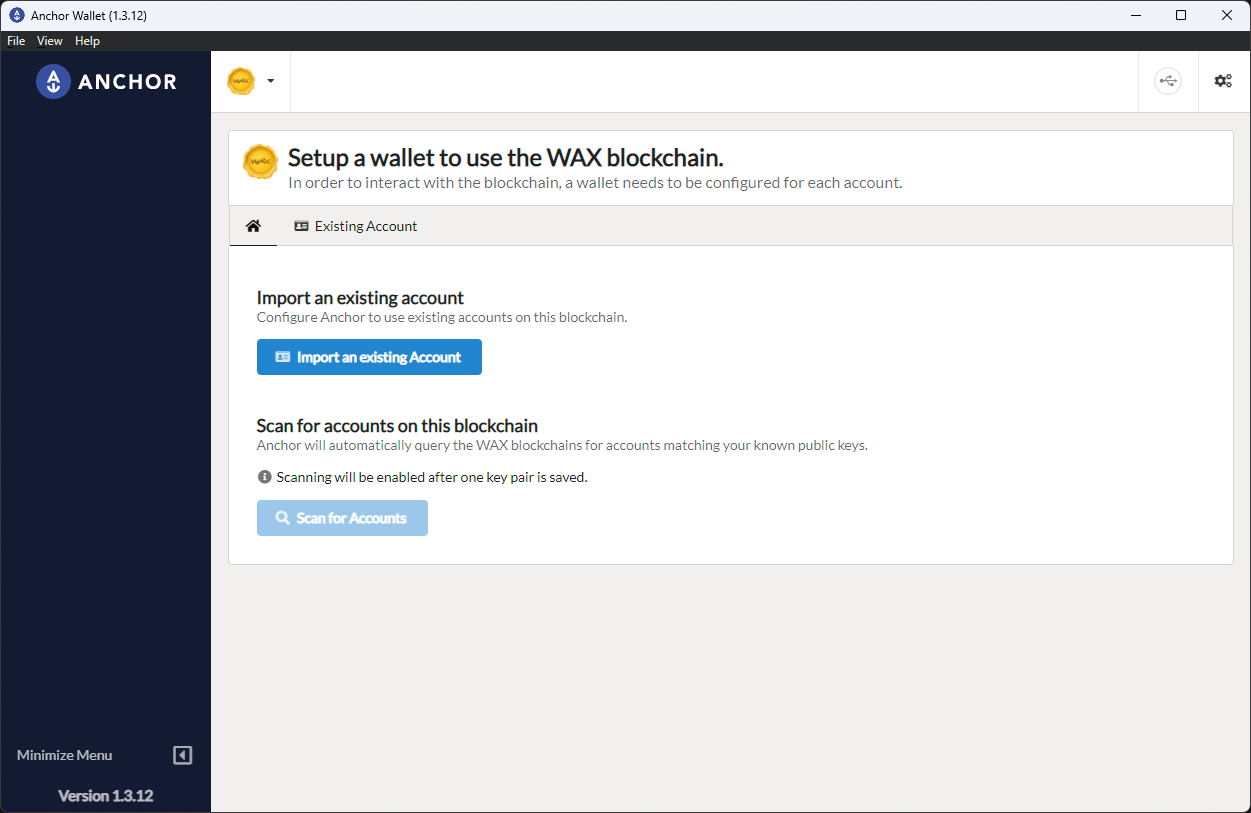
- On the WAX setup page, choose Import an existing Account.
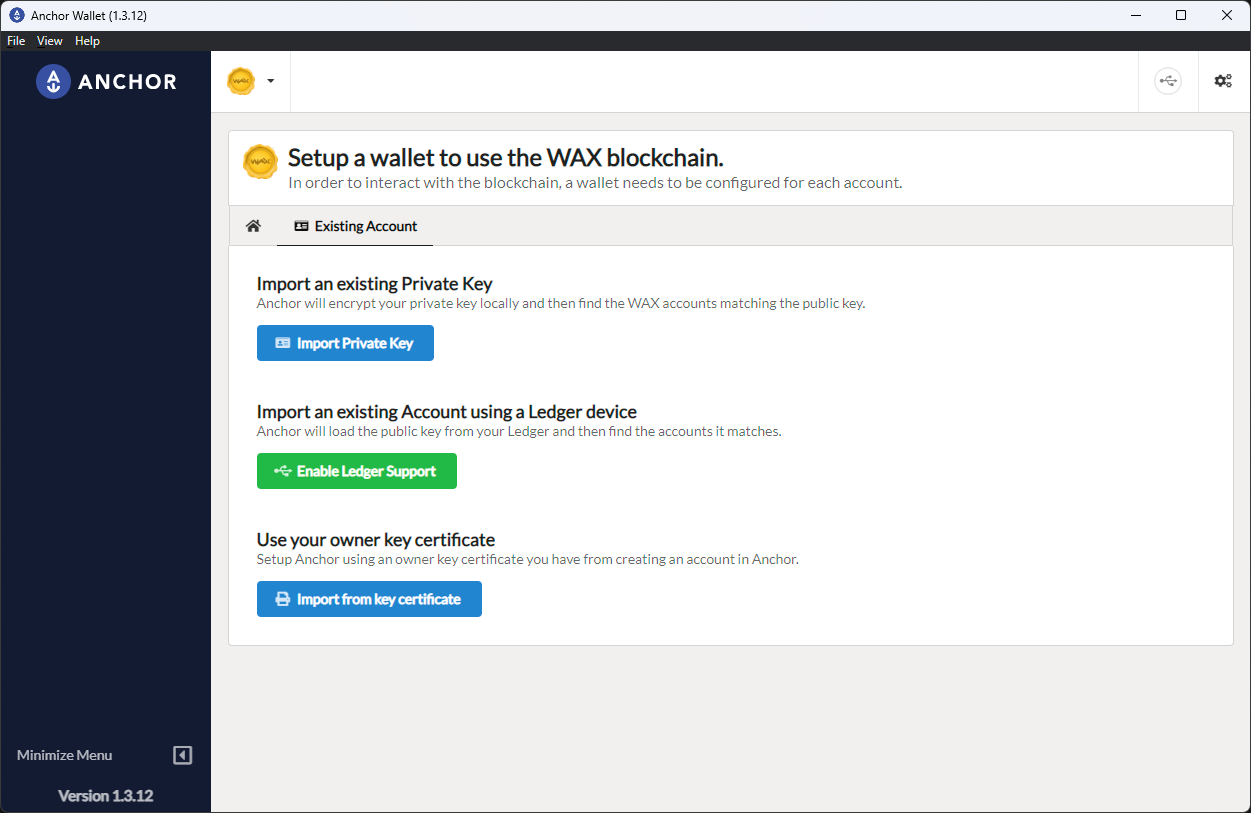
- Select Import Private Key. This page also shows separate options for Ledger devices and owner key certificates.
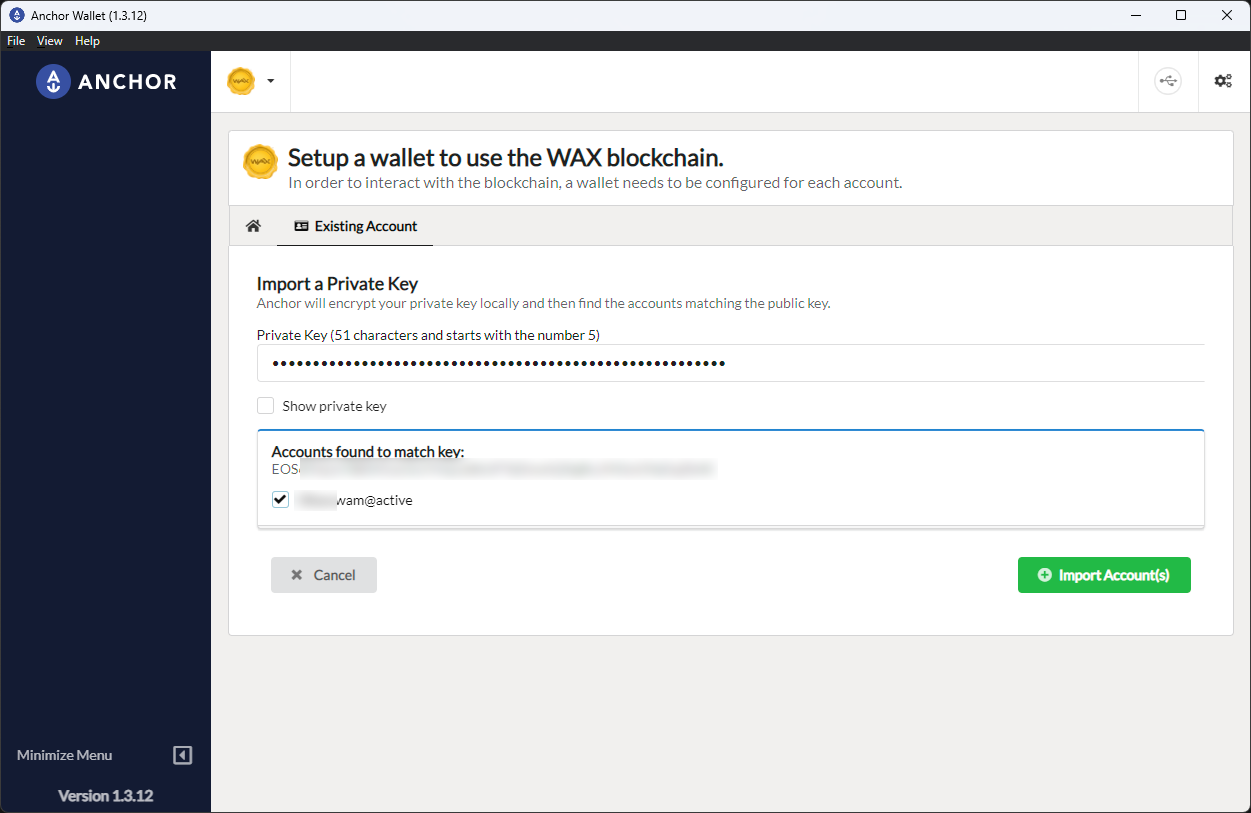
- Paste your WAX private key. Anchor will look up matching accounts for that key. Select the account permission you want to import, then choose Import Account(s).
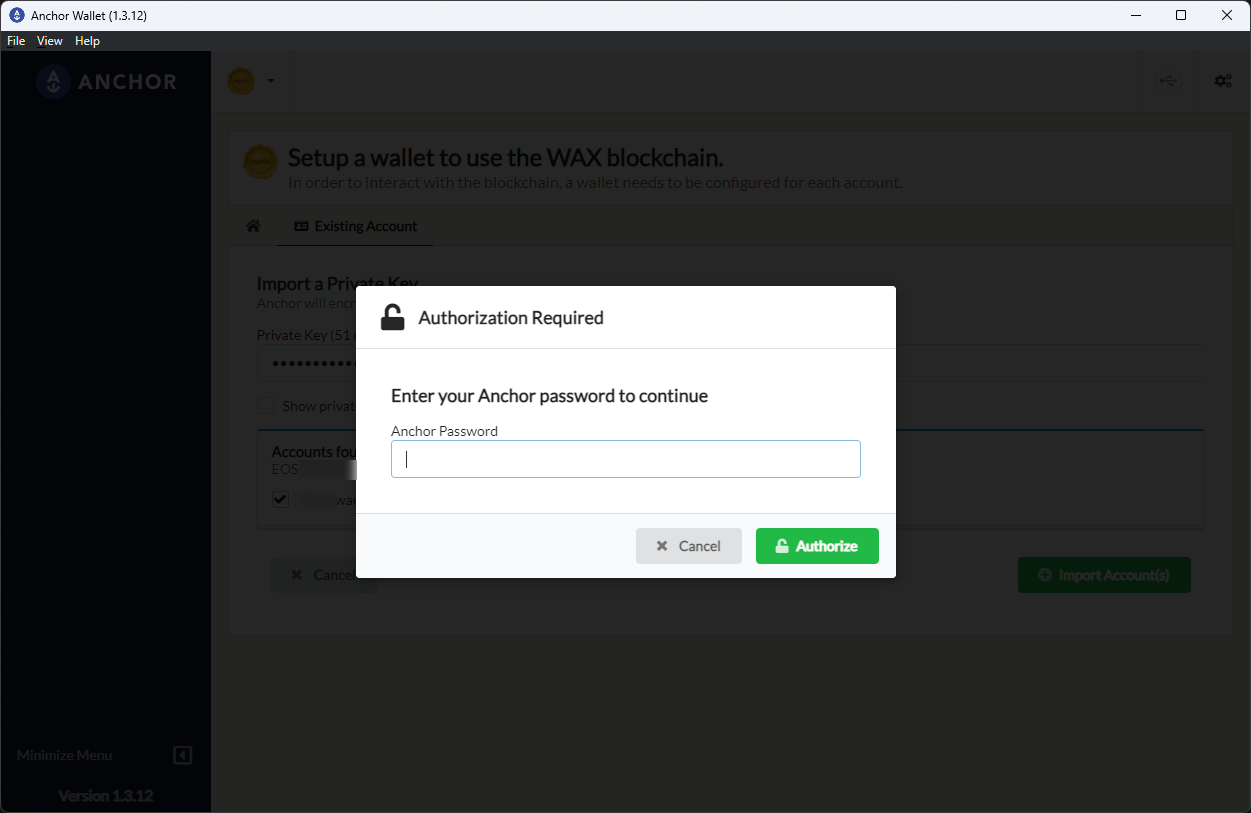
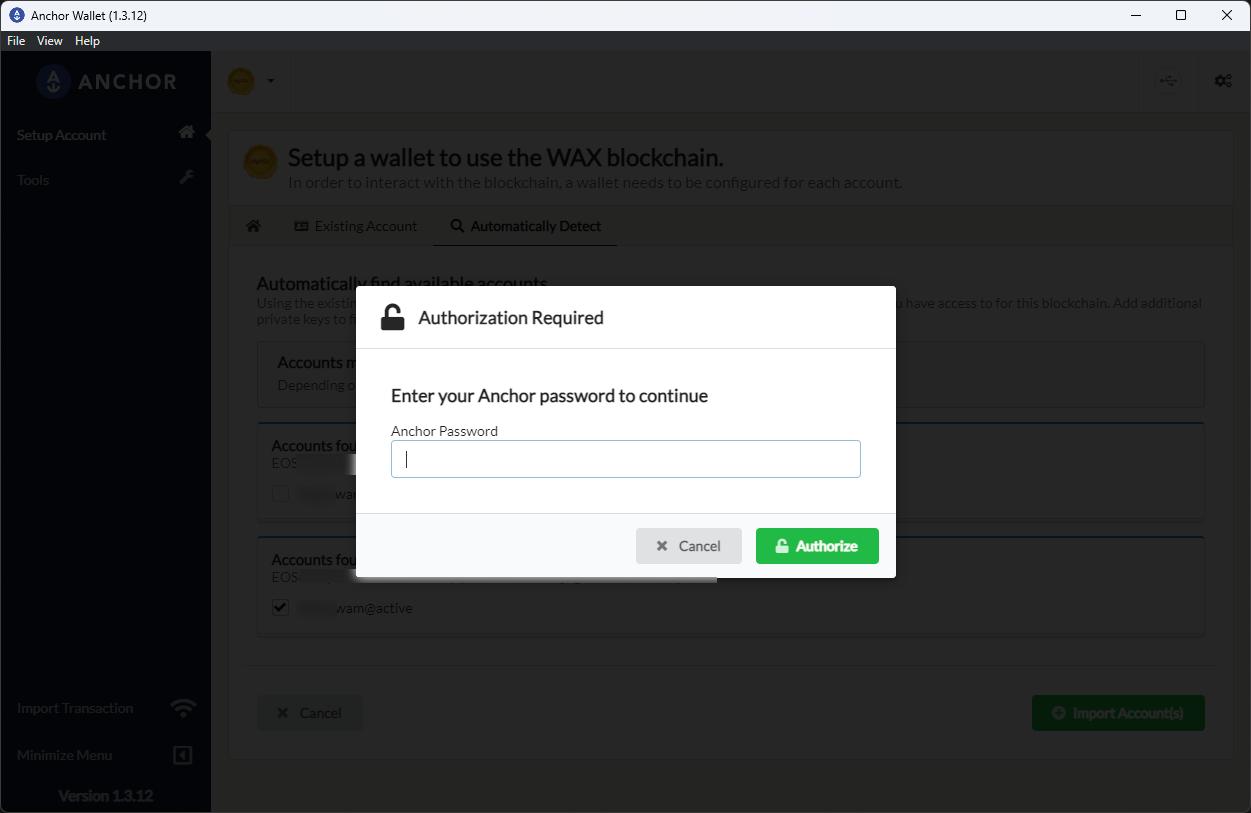
- Enter your Anchor password to authorize the import.
- After the import finishes, Anchor adds the account to Manage Wallets. If needed, select Use Wallet to switch into it.
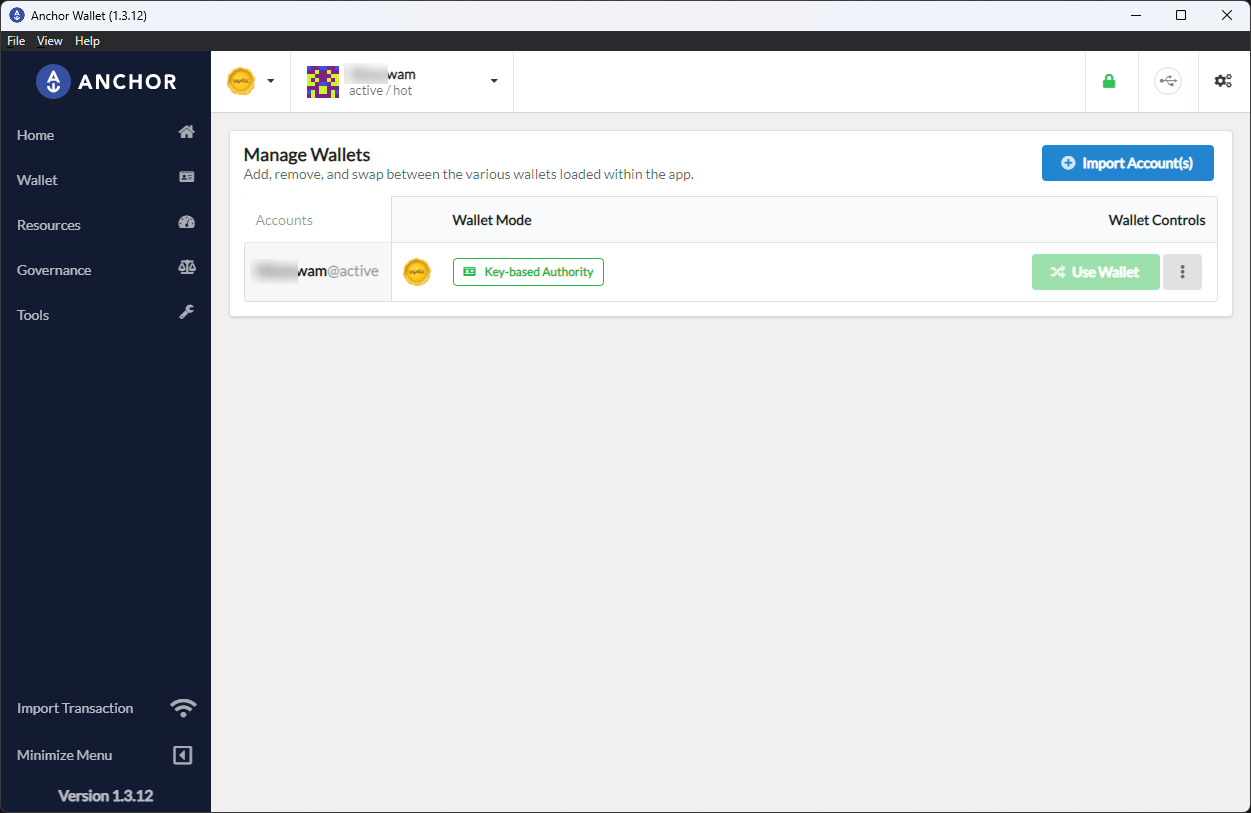
- Anchor then opens the account overview for your imported WAX account.
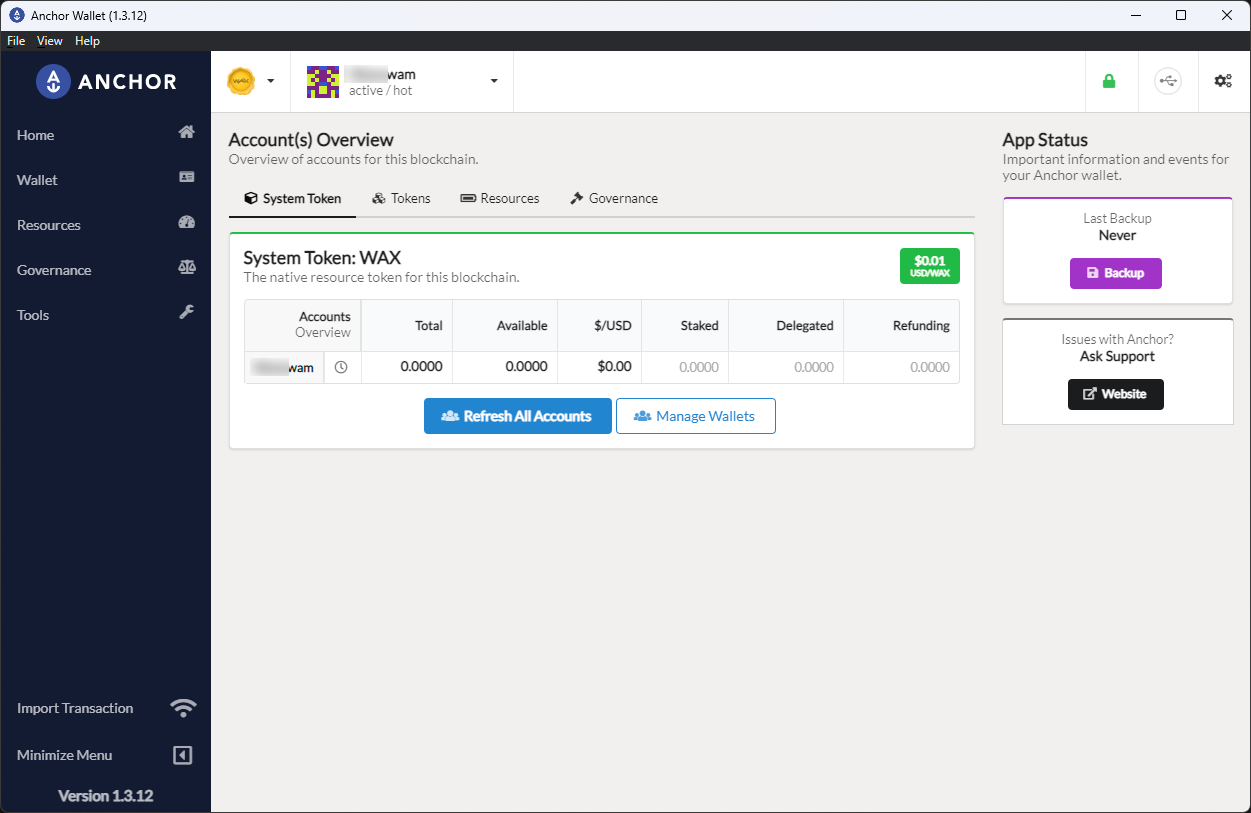
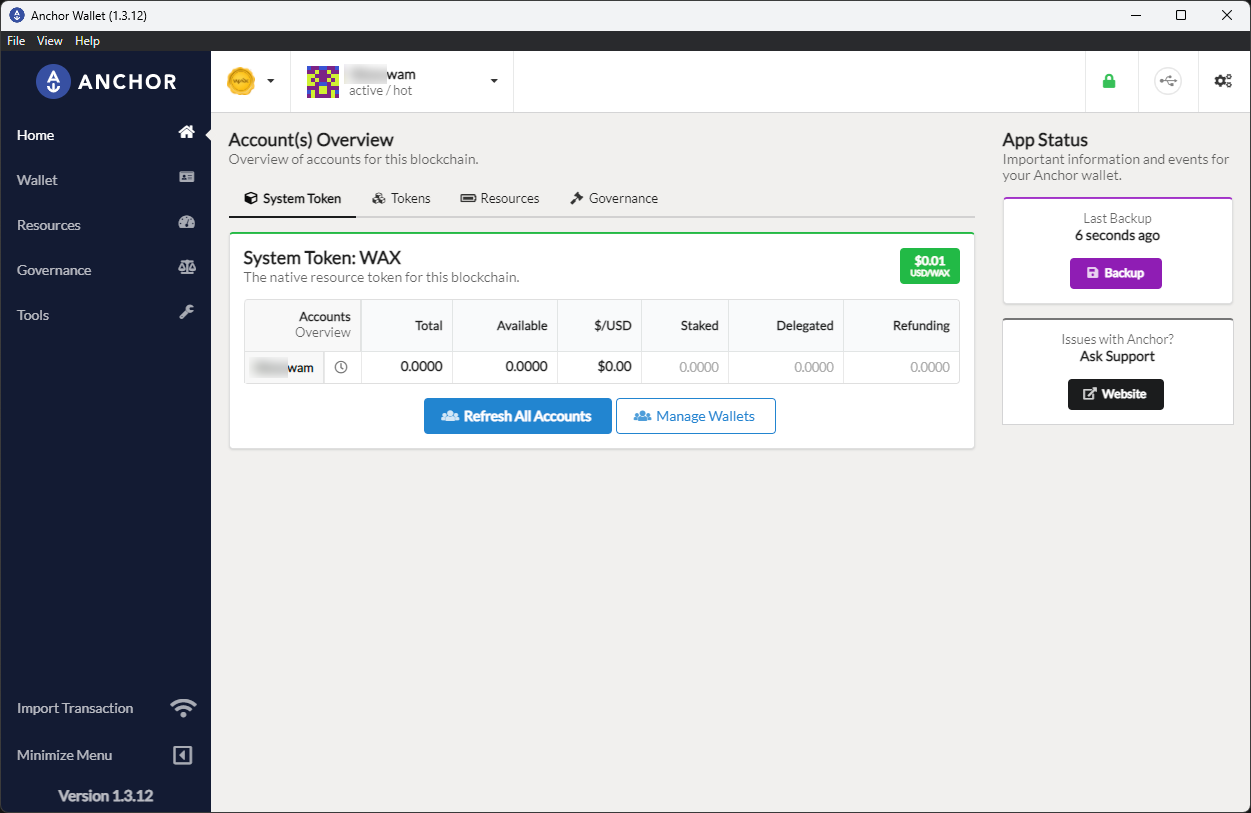
- Create a backup of your wallet from the Backup button. After the backup succeeds, Anchor shows the backup status in the right sidebar.
Generate Keys in Anchor, Then Detect the Account
This flow shows how to generate new keys inside Anchor first. After the keys are created and saved, you must add those public keys to a WAX account before Anchor can detect anything. That can happen during a My Cloud Wallet claim process or through another account-management method.
- Open Settings from the top-right gear icon and enable Display advanced options.
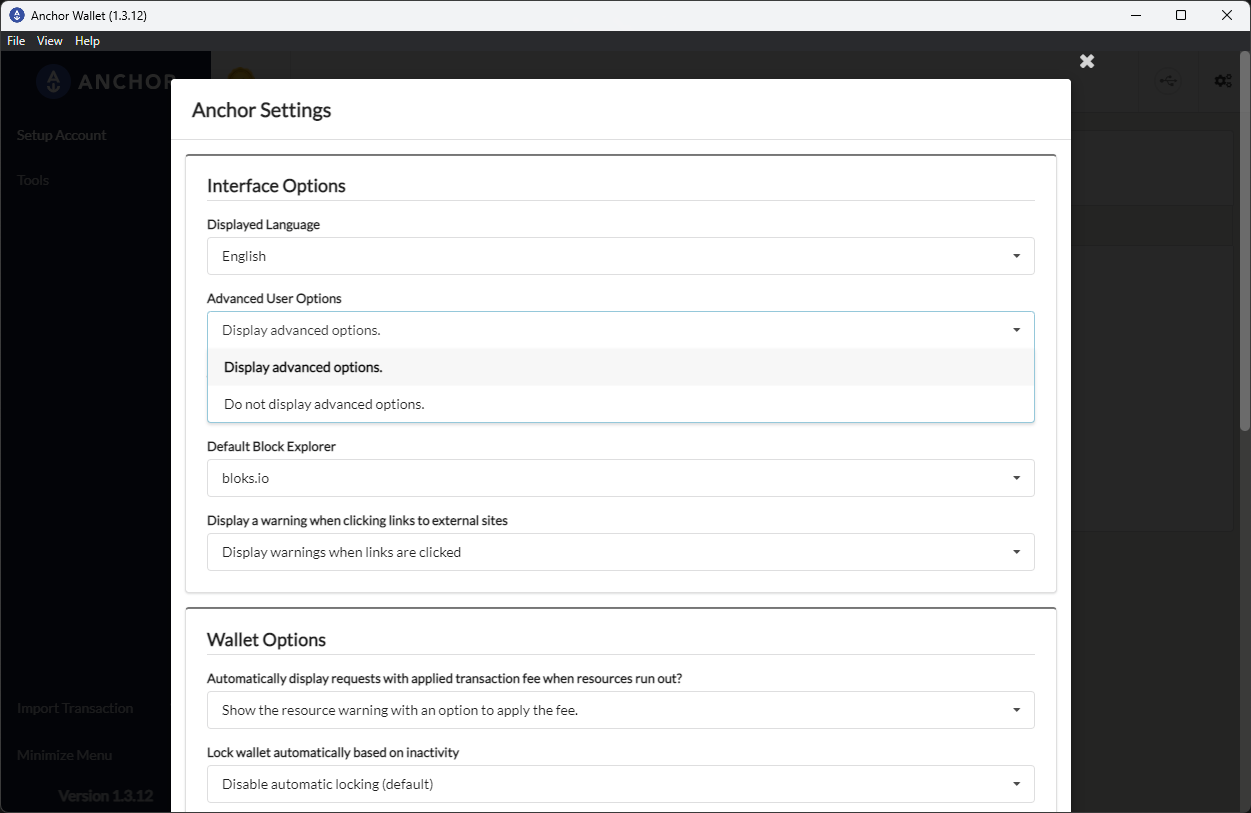
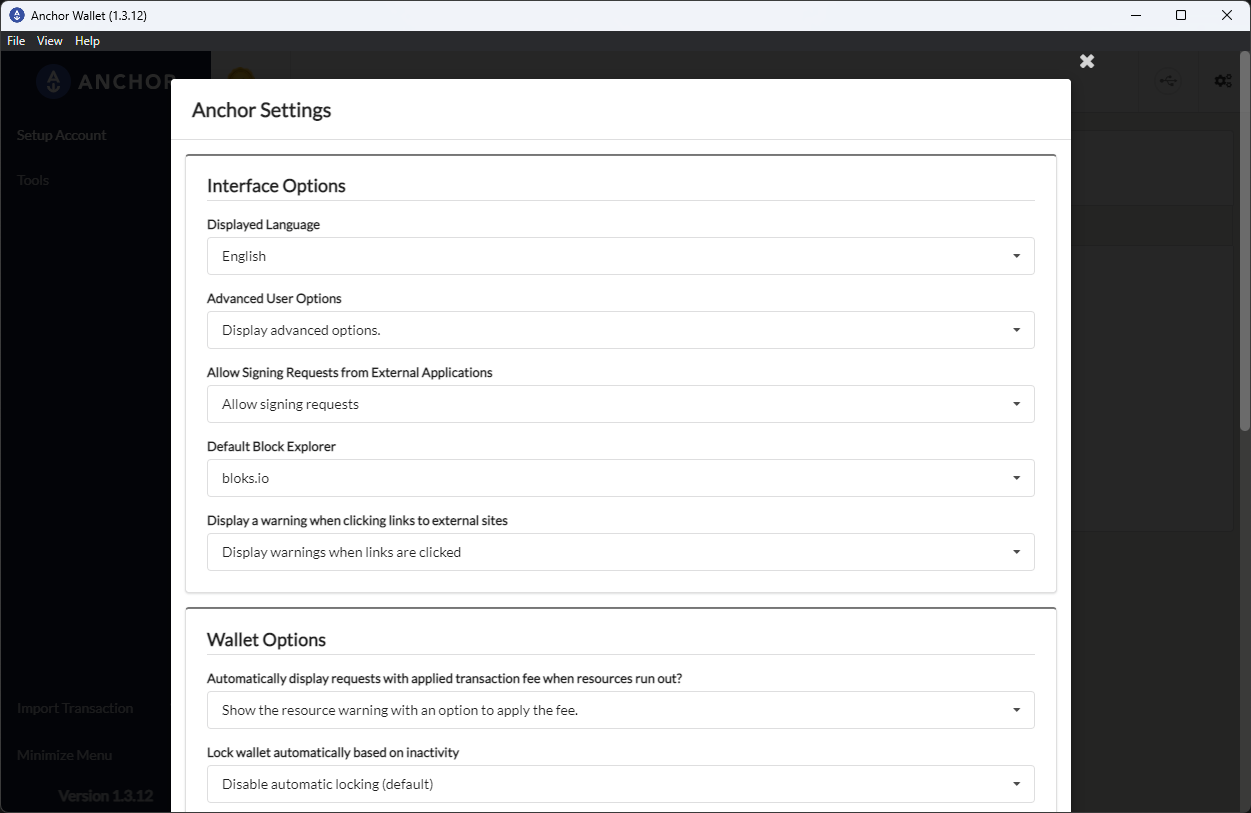
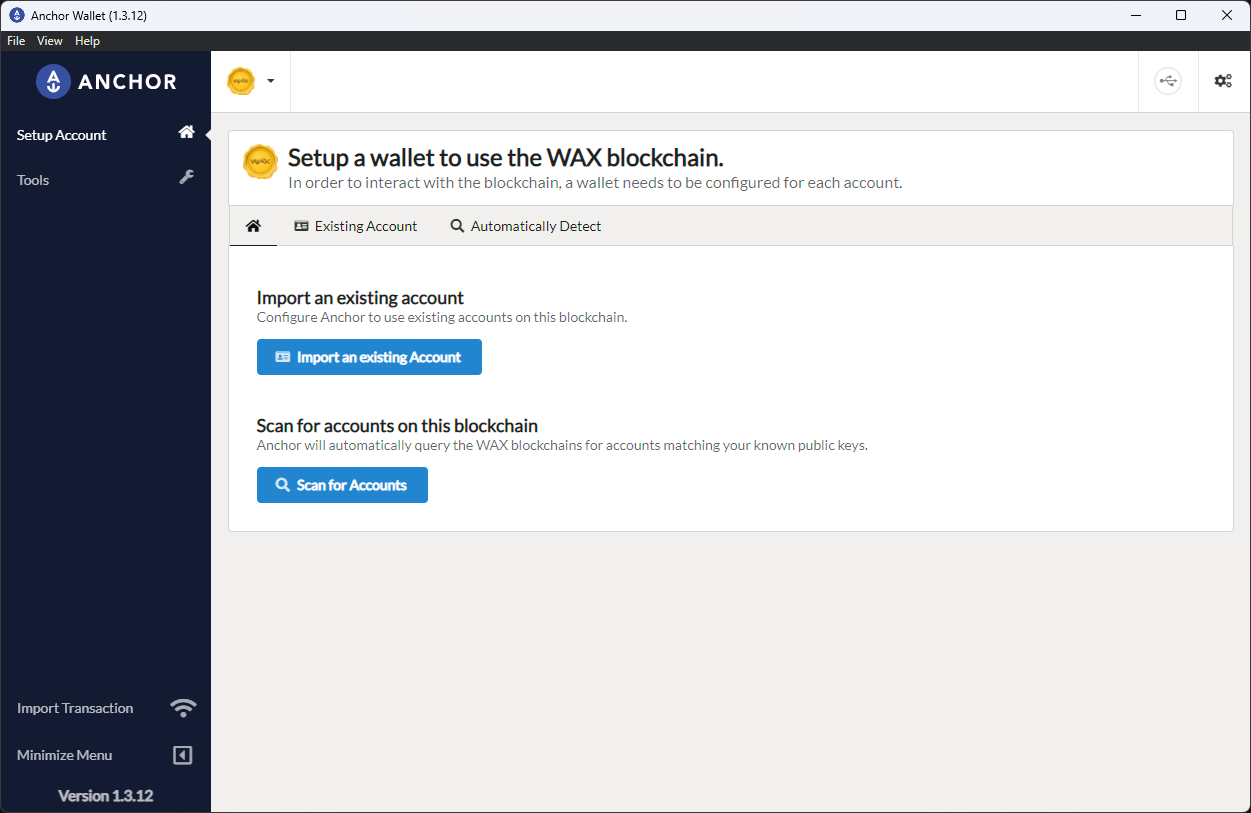
- Return to the WAX setup screen. Anchor now shows an Automatically Detect tab next to Existing Account.
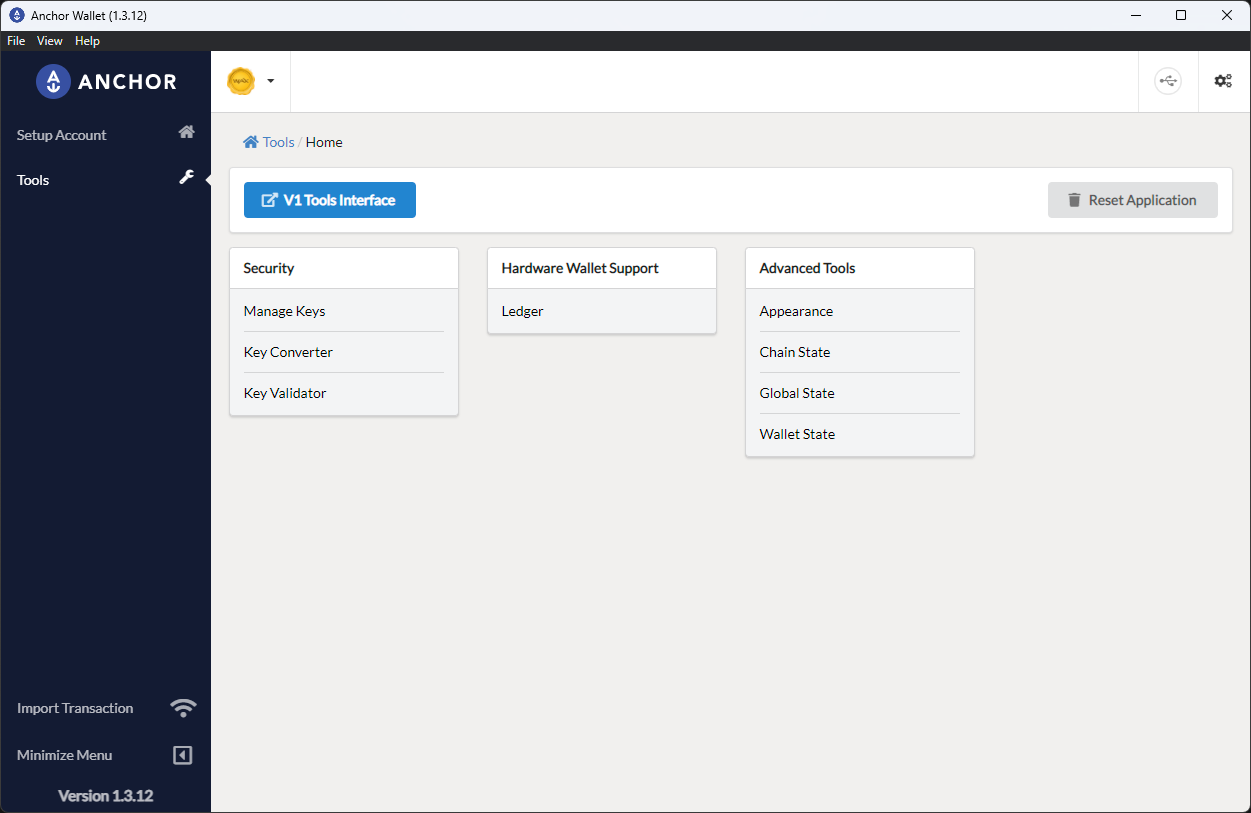
- Open Tools, then select Manage Keys.
- In Key Management, add the key pair you want Anchor to use. If you already have a key, use Import Key. The screenshots below show the flow for generating and saving a new key pair inside Anchor.
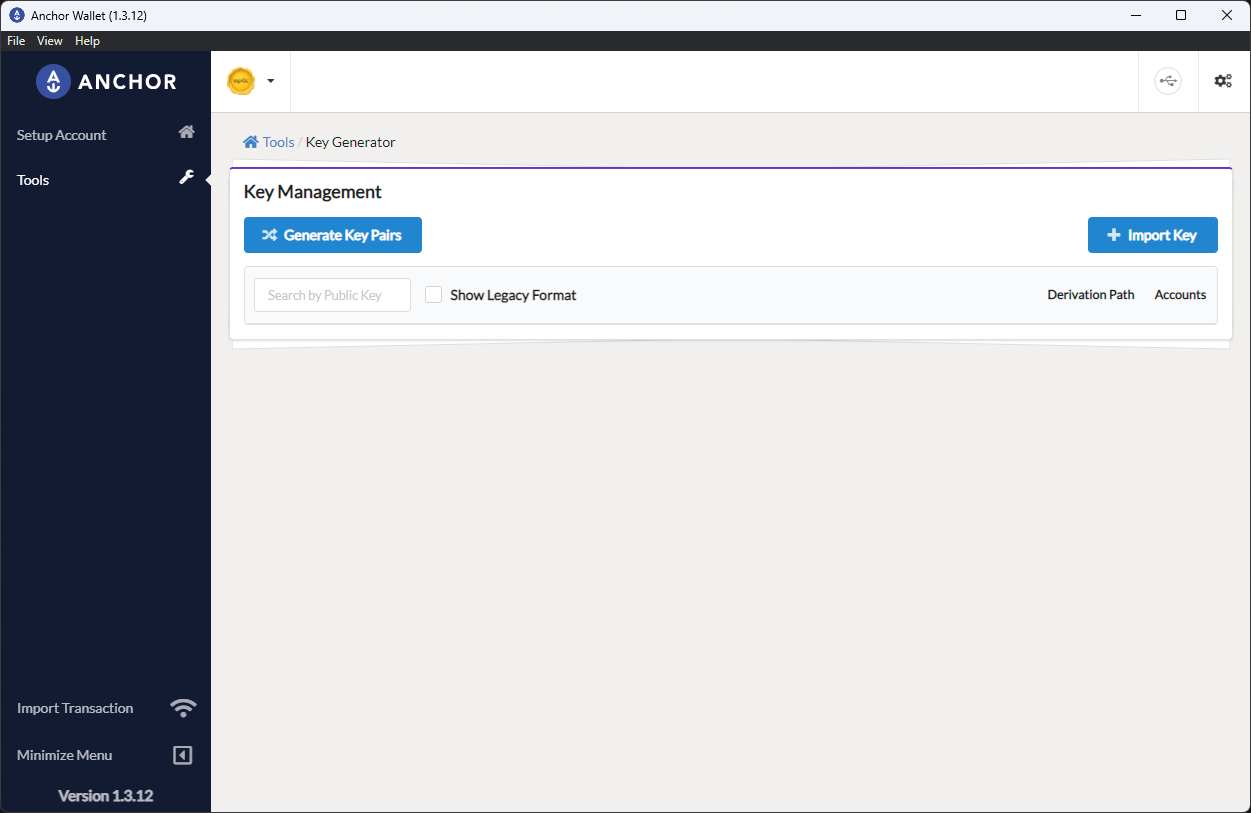
- Select Generate Key Pair (x2) to create a key pair in the example flow.
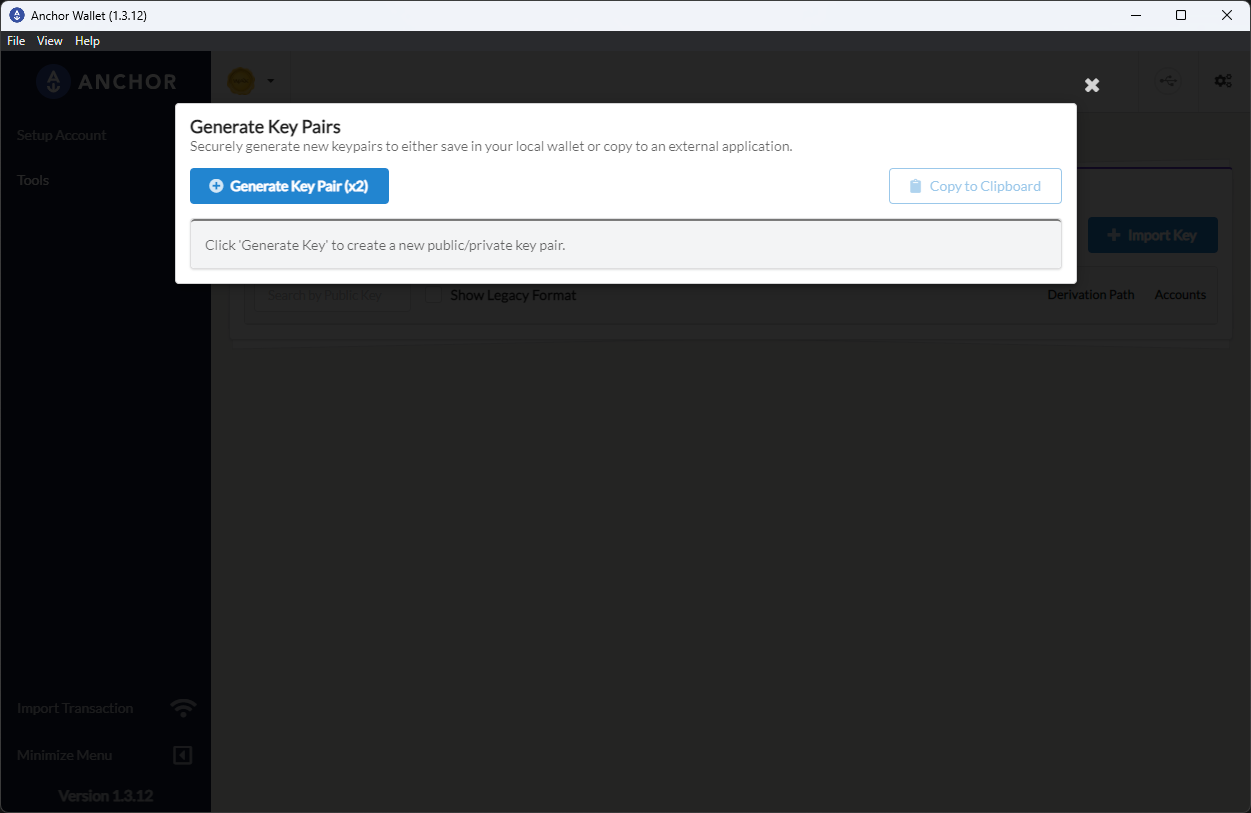
- After the keys appear, save them to the wallet.
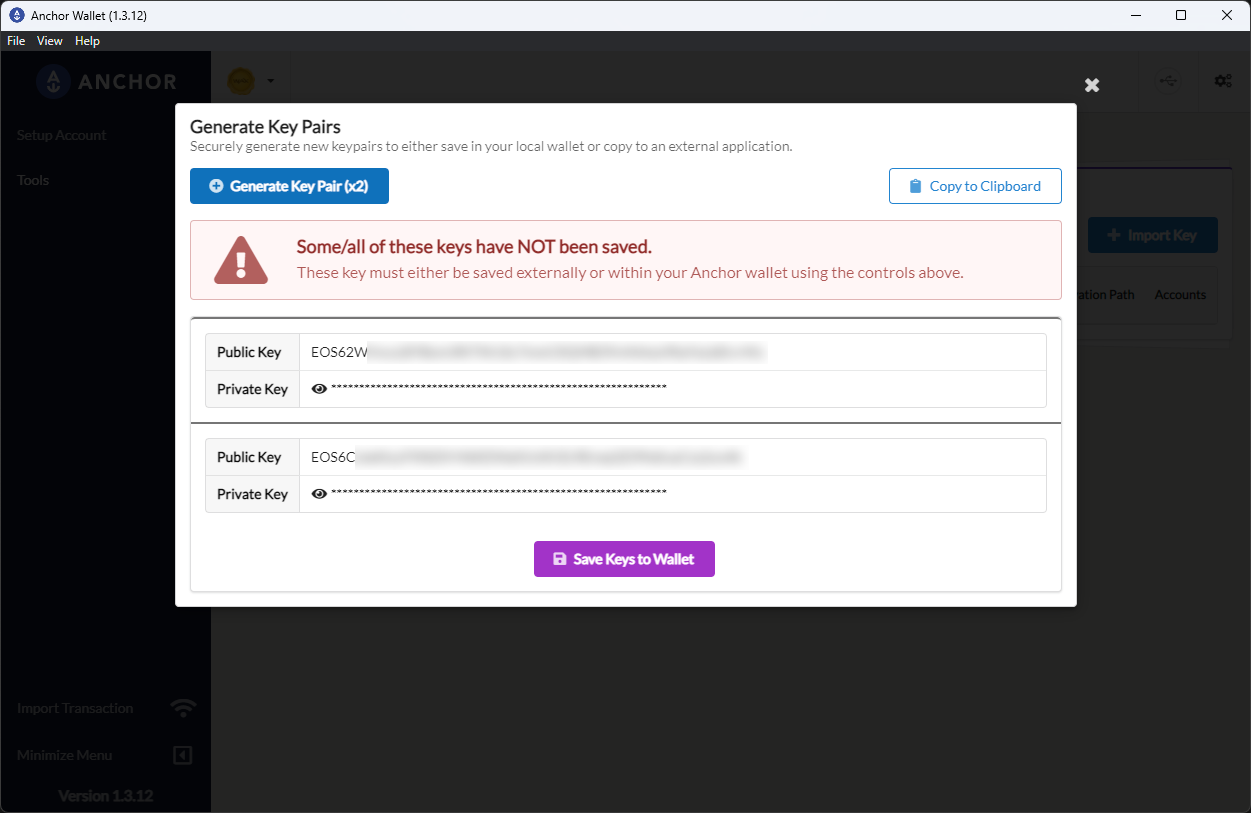
- Enter your Anchor password to authorize saving the keys.
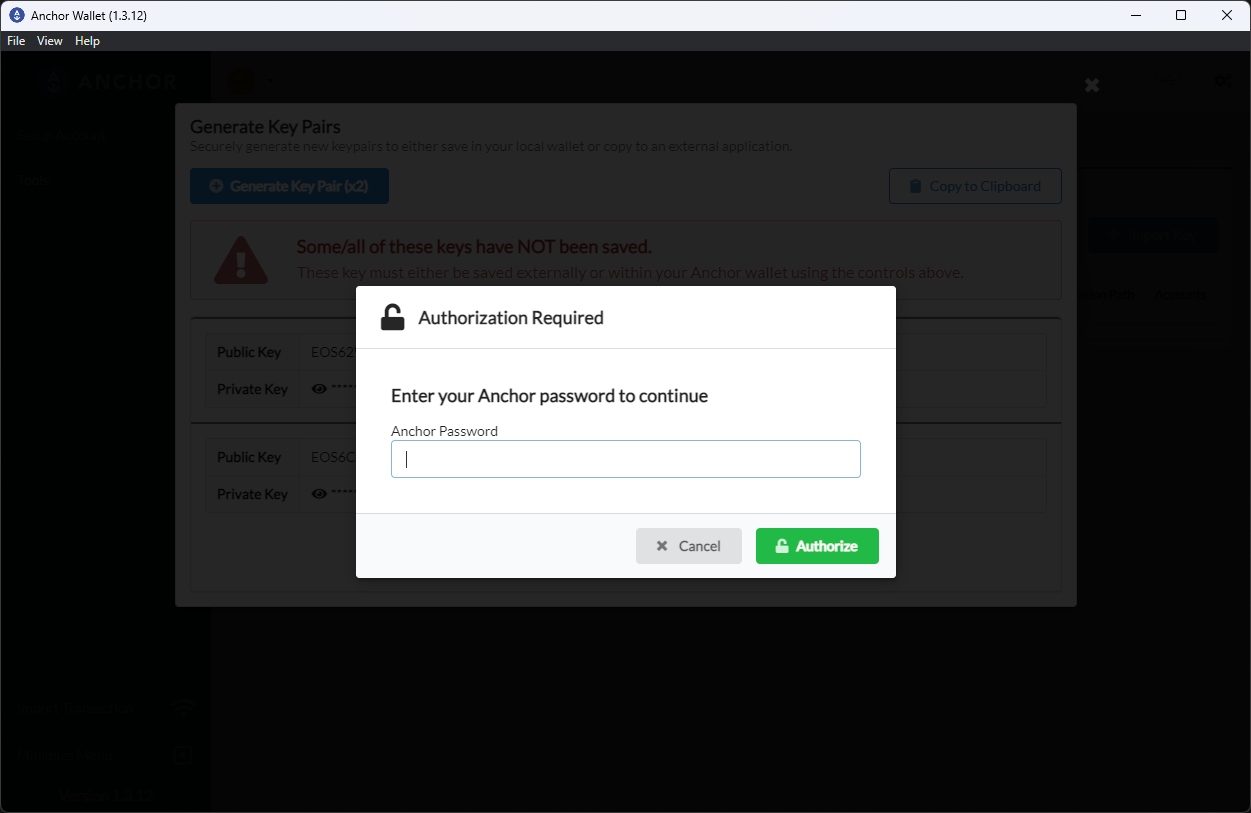
- Confirm the keys are saved, then close the dialog.
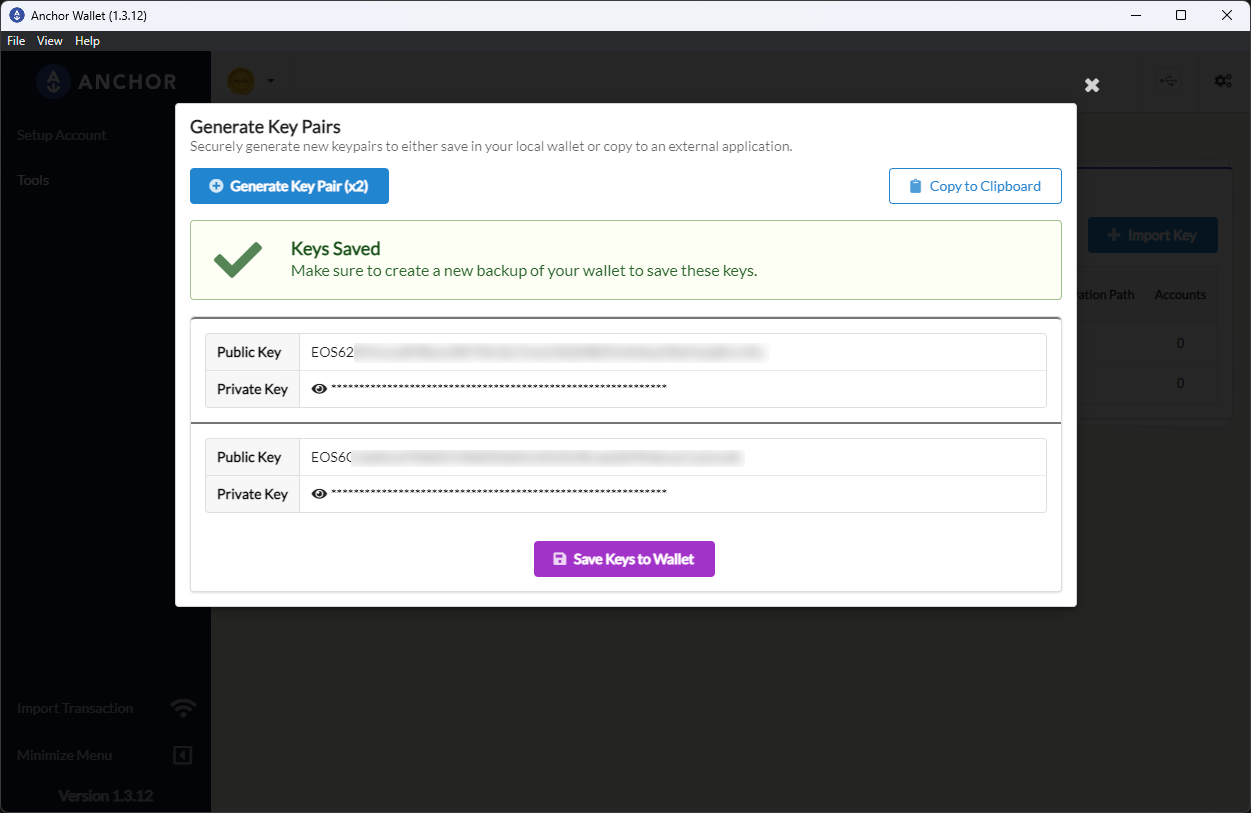
- Back in Key Management, confirm the key pair is listed.
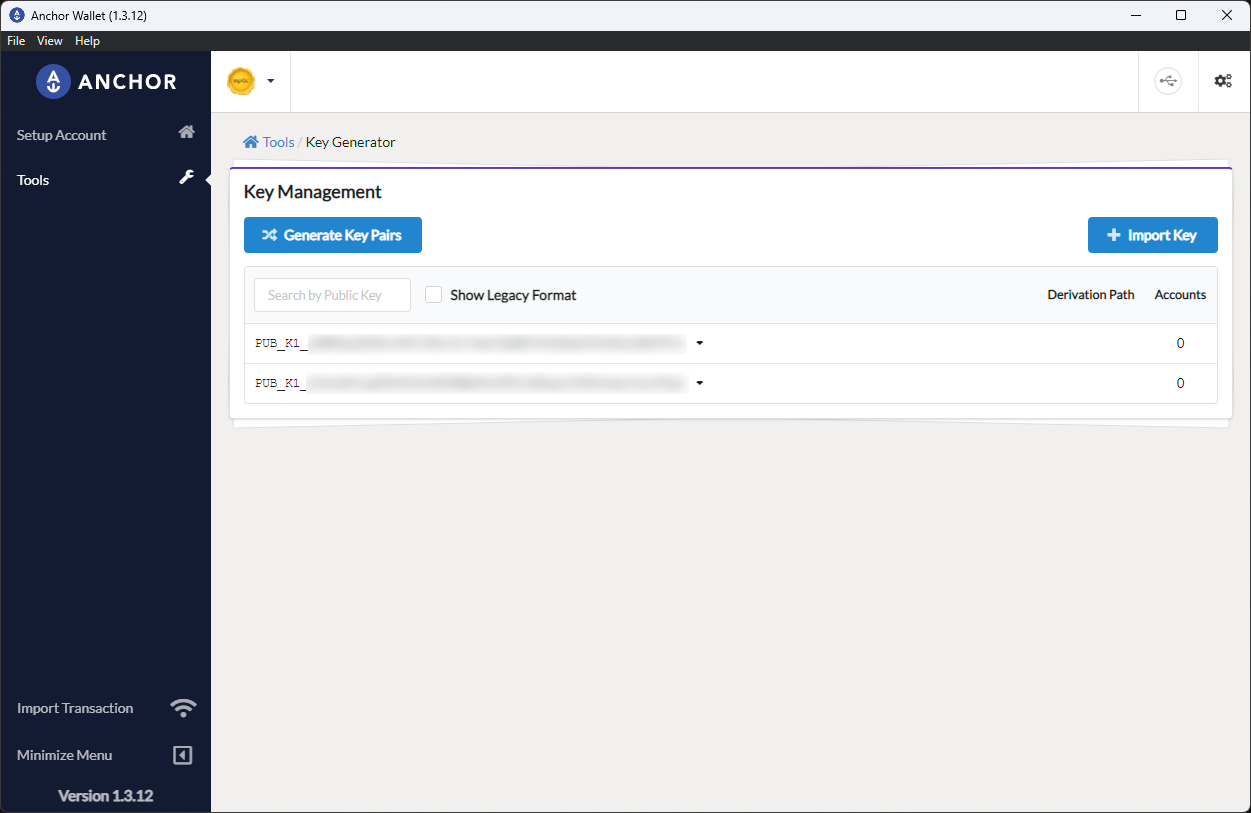
Before continuing, add the generated public key or keys to the account you want to import. For example, you can use these keys during a My Cloud Wallet claim, or assign them manually on an account you already control.
After those keys are attached to the target account on WAX, go back to the WAX setup flow and open Automatically Detect. Anchor scans for accounts that match the keys stored in the wallet. Select the account permission you want to import, then choose Import Account(s).
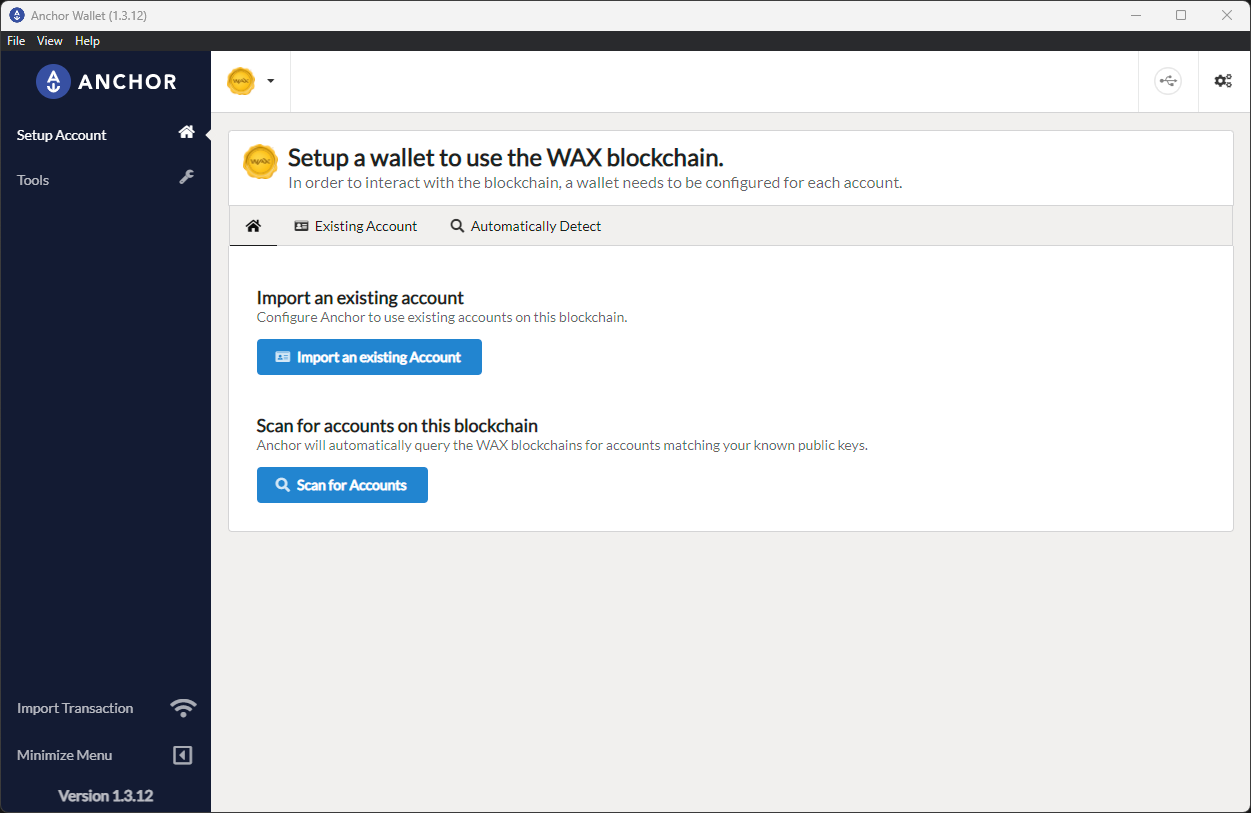
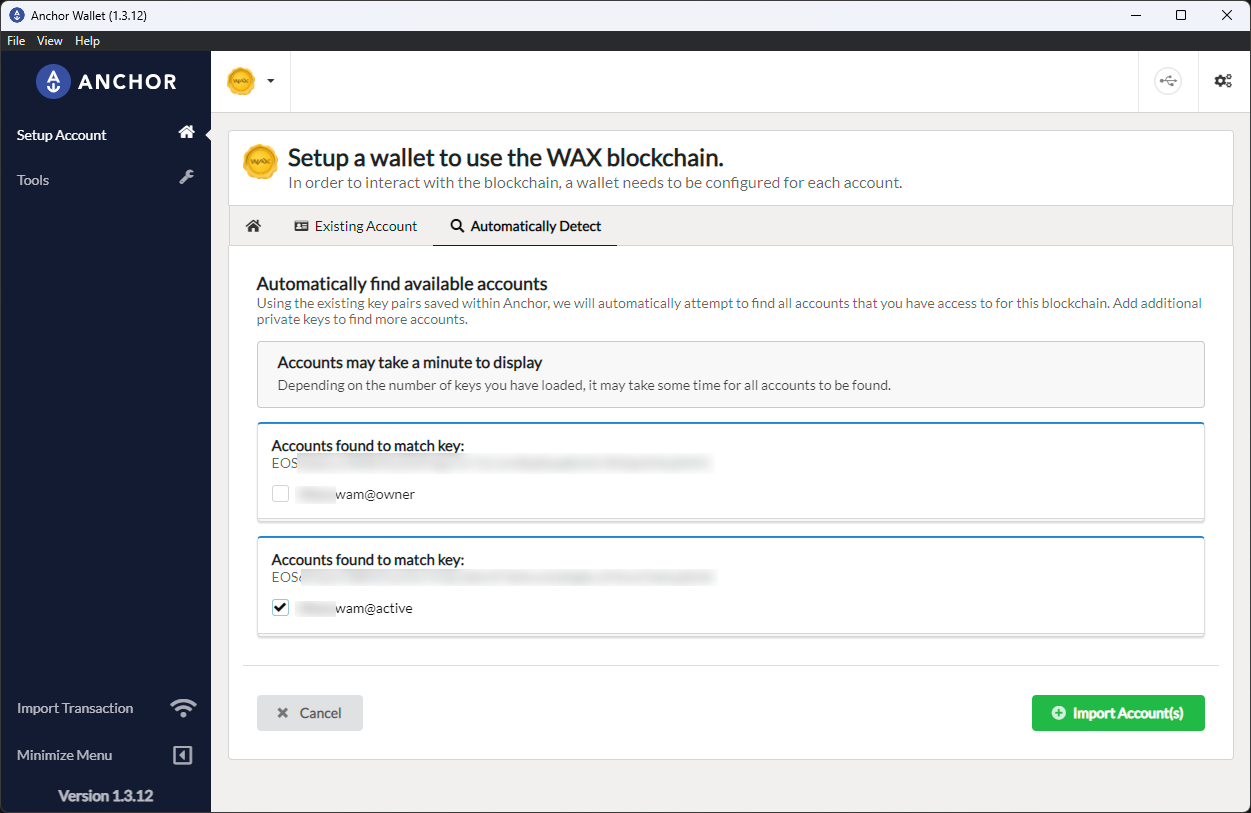
- Enter your Anchor password to finish the import.
Need Help?
If Anchor does not find your account, your key may not match the permission on that account, or you may be using the wrong key format. For official support, visit the Greymass Support Portal.